
A screenshot of a map says I ran. A video of the route drawing itself across the city, with the kilometres ticking up, says here’s how it went.
iRunning can now make that video for you. Pick a run, pick a style, tap export, and a few seconds later you have a vertical clip ready for Instagram Stories or TikTok. It’s free for everyone.
What’s in the video
- Your route draws itself behind a moving dot, from the start line to the finish.
- Four numbers count up as the runner moves: distance, elapsed time, current pace and heart rate. Pace uses the last 30 seconds of running, so it moves the way your pace actually moved: fast on the reps, slower on the recoveries.
- The camera follows you by default, zoomed in, then pulls back at the end to reveal the whole loop.
- The run’s name (and, in most styles, the date) sits on the card, along with a small iRunning mark.
It’s a silent H.264 MP4 at 1080 pixels wide and 30 frames per second, so you can add your own music in Instagram or TikTok.
Five looks
Swipe the style name above the preview to switch between five designs: Ink, Frosted glass, Brand block, Side rail and Bleach wash.

How to make one
- Open History and tap a run with a GPS route.
- Tap Share, then choose Video (“Animated route replay”).
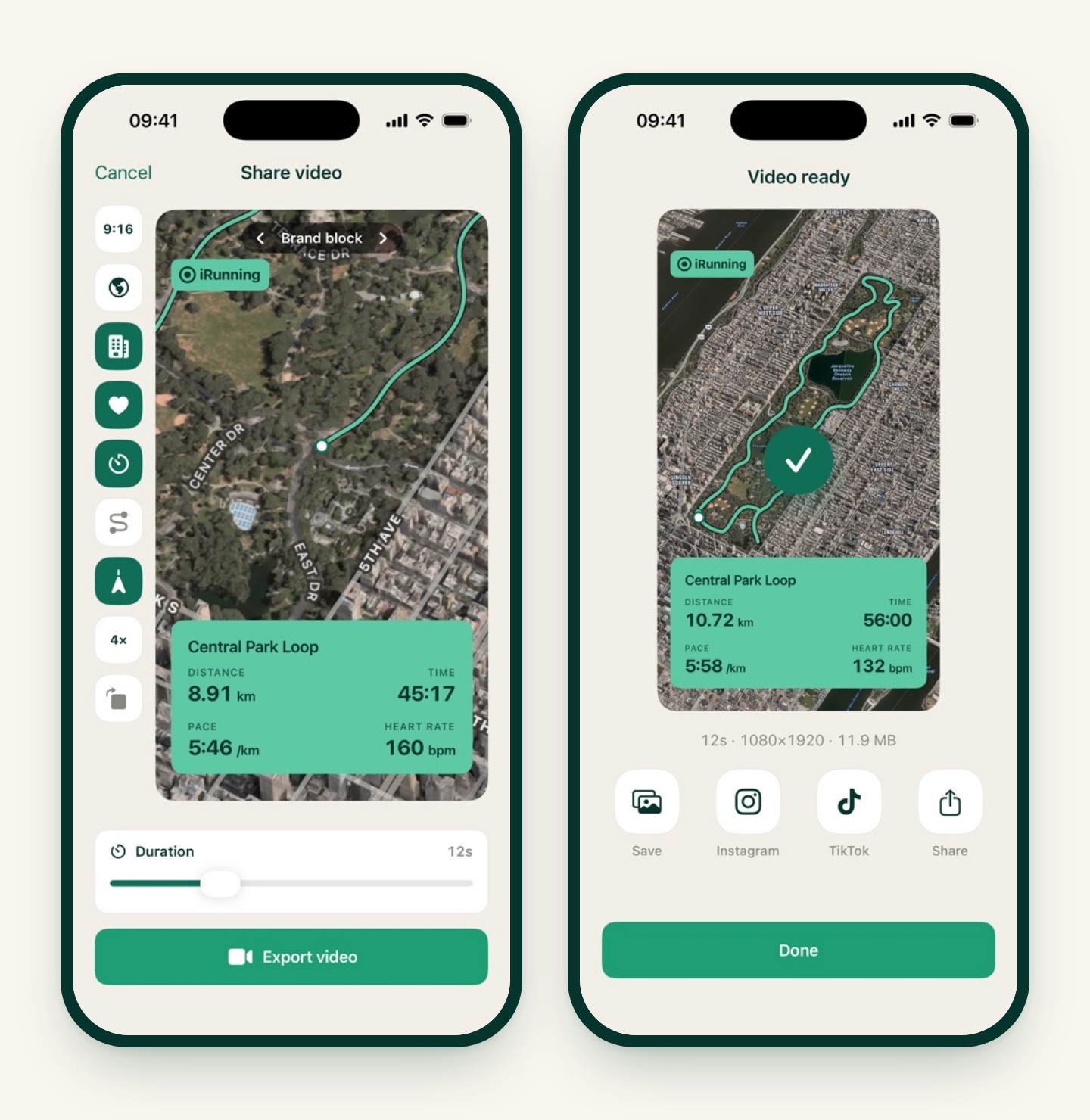
- Set it up with the buttons down the left side of the preview:
- Format: 9:16 for Stories, Reels and TikTok, or 2:3 for a feed post.
- Map: light, dark or satellite.
- 3D buildings: tilts the camera so the city rises around your route.
- Heart rate and Time: show or hide either number.
- Whole route: show the full loop from the start instead of drawing it as you go.
- Follow runner, zoom (2.5× to 8×) and rotate map with heading.
- Drag the Duration slider anywhere from 5 to 30 seconds. The default of 12 seconds suits a story.
- Tap Export video. A 12-second clip renders in well under a minute.
Where it goes
When the video is ready you get four options:
- Instagram opens Stories with your video already set as the background. Add stickers, music or a caption, then post.
- TikTok saves the clip to Photos and opens TikTok, so you can pick it from your camera roll.
- Save puts it straight into Photos.
- Share opens the usual share sheet for Messages, WhatsApp, AirDrop and so on.
The Instagram and TikTok buttons only appear when those apps are installed.
Tips for a better clip
- Sessions with pace changes make the best videos. Watching the pace jump on every rep, or drop on every float, is far more interesting than a steady line. The loop above has five kilometre surges in it, and you can see each one.
- Try 3D in cities, satellite on trails. Buildings give 3D its drama; satellite imagery shows the forest, coast or mountain you ran through.
- Keep it short. 10 to 15 seconds holds attention in Stories. Save 30 seconds for the long run you’re proud of.
- Use Whole route for a loop. A route that returns to the start looks great when the full shape is visible from the first frame.
What you need
- A run with GPS. Treadmill and indoor runs have no route, so there’s nothing to animate. For those, share one of the image cards instead.
- iRunning 1.2.2 or later. Video export is free: no subscription needed.
Want a still image instead? The same five styles are available as map photo cards in Share › Image. And if you’d rather put your stats on your own photo, see how to add transparent run overlays to your Instagram story.