
Changing running apps has a hidden cost: the history. Every 5K you ran last winter, the long run where you finally cracked 15 km, the streak you kept through a bad month. Leave it behind and the new app treats you like a beginner.
iRunning is built so you don’t have to. There are three ways to bring old runs in, all of them free, and an imported run is treated exactly like one you recorded yesterday: splits, heart-rate zones, weather, share cards, the lot.
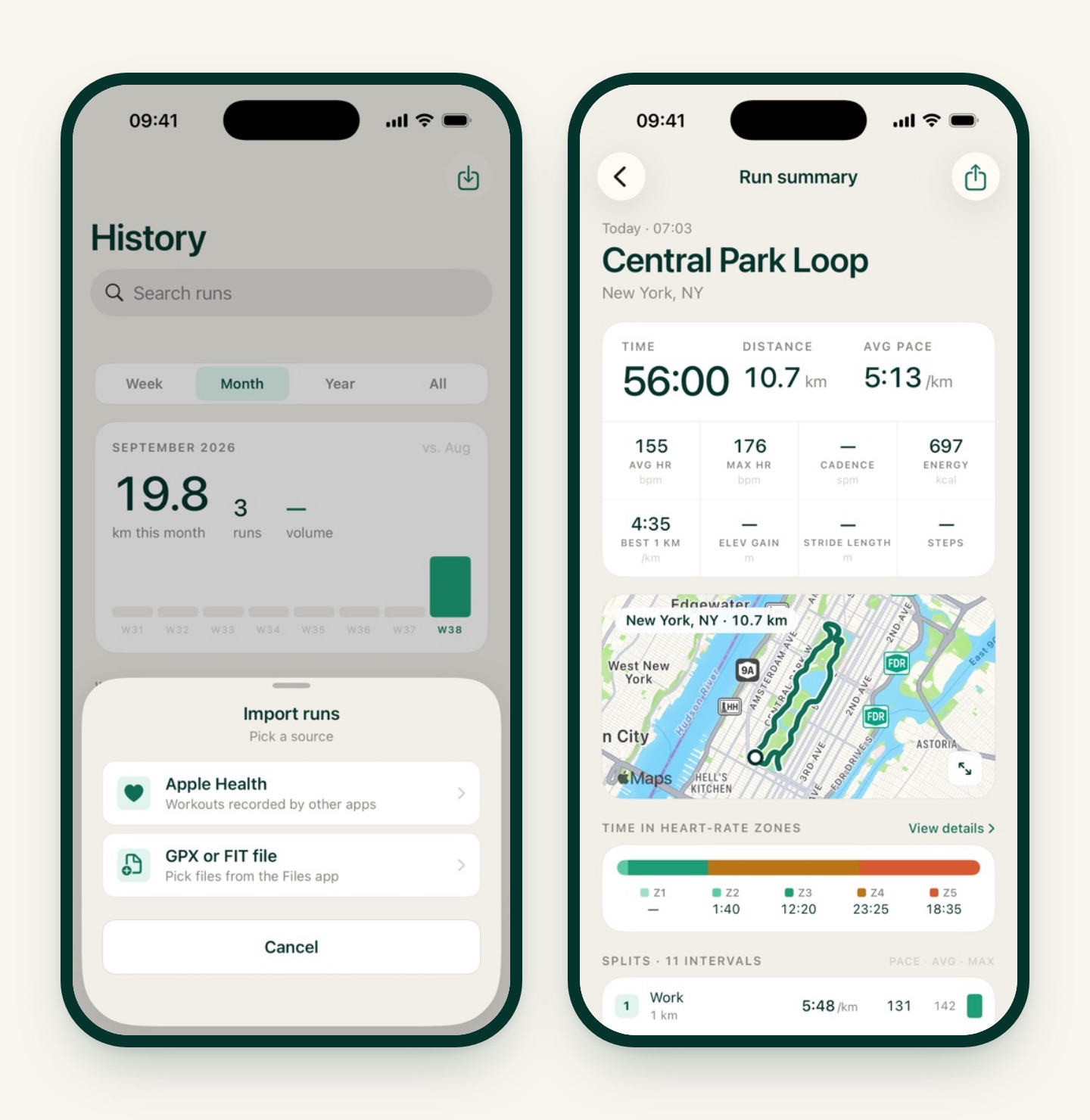
The three ways in
Open History and tap the import icon in the top corner. You get two sources:
- Apple Health. Workouts recorded by other apps. This is the easiest route, because most running apps already write to Health.
- GPX or FIT file. Pick one or several files from the Files app. Use this for data that never touched Health: a Garmin archive, a Strava export, a friend’s route file.
The third way is automatic. Settings › Devices › Auto-import from Health is on by default. The first time it runs it looks back 90 days, and after that it checks Health every time you open the app, picking up anything new. It also re-checks the last week each time, because some bridges (Garmin’s, for one) write workouts into Health days late.

Getting your runs out of the old app
Every app has its own export, and the menus move around. Here’s where to look as of this writing; if yours has moved, search the app’s settings for Health or Export.
Nike Run Club. There’s no file export, but NRC can sync every run to Apple Health. Turn that on in NRC’s settings, give it a few minutes, then open iRunning’s Health import. Your NRC runs appear as “Workouts recorded by other apps”.
Strava. Two options. For a handful of runs, open each activity on the Strava website, click the ⋯ menu and choose Export GPX. For everything at once, go to your account settings and request a full data archive: Strava emails you a ZIP with every activity in it. Some files inside come compressed (.fit.gz); open the archive on a Mac or with an unarchiver app so you end up with plain .gpx and .fit files, then import the lot.
Garmin. The Garmin Connect app can write workouts to Apple Health, which makes the Health import the simplest path. For originals, open an activity on the Garmin Connect website, click the gear icon and choose Export Original (a FIT file, delivered zipped, so unzip it first) or Export to GPX. FIT is the better choice: it carries heart rate, laps and running dynamics.
Apple Watch Workout app, Runkeeper, adidas Running and most others. If the app records to Apple Health, you’re already done: it’s in the Health import list. Most also offer GPX export per activity.
What comes with the run
An imported run is a first-class run. What you get depends on what the file contains:
| Data | Apple Health | GPX | FIT |
|---|---|---|---|
| Distance, time, pace | ✓ | ✓ | ✓ |
| Route map | ✓ | ✓ | ✓ (if the device had GPS) |
| Heart rate + your zones | ✓ | ✓ if the file has it | ✓ |
| Elevation | ✓ | ✓ | ✓ |
| Calories | ✓ | estimated | ✓ |
| Splits | per km / mile | per km / mile | the watch’s own laps |
| Cadence, running form | from Health, if a Watch recorded them | — | ✓ ground contact, vertical oscillation, stride, power |
A few details worth knowing:
- Heart-rate zones use your zones. Time in zone is calculated with the boundaries you’ve set in iRunning, not the old app’s.
- Weather is filled in. Open an imported run with a route and iRunning looks up the temperature, wind and humidity for that hour at that spot.
- Runs get named by time of day (“Morning Run”, “Evening Run”) unless the file carries a name. Rename them if you like.
- Pauses are respected. A GPX with several track segments, or a FIT with timer stops, imports with the pauses subtracted, so pace isn’t skewed.
- They count. Imported runs show up in your weekly and monthly totals, can complete a training-plan session, and can be shared as cards or as a route video.
Duplicates and mistakes
- iRunning never imports its own runs back. Runs it saved to Health are filtered out of the list.
- Already-imported runs are marked “Imported” in the Health list and can’t be picked twice. Any run that starts within 90 seconds of one already in your history is treated as the same run.
- Deleting an auto-imported run prompts you: while auto-import is on, Health could add it back next time. You can turn auto-import off from that prompt.
- A file that won’t import usually has no timestamps (planned routes rather than recorded ones) or isn’t a run, walk or hike. Cycling FIT files are skipped on purpose.
Free or Premium?
Importing is free, and there’s no cap on how much you import. The one thing to know: on the free plan, History opens runs from the last 7 days. Older runs still count in your charts and totals, but tapping one to see the details is part of iRunning Premium. If you’re bringing in years of history and want to browse it, that’s the reason to upgrade.
Do it once, then forget about it
The combination that works for most people: import the backlog from a file archive once, then let Auto-import from Health keep things tidy. Record with whatever you like, on a Garmin, an Apple Watch or another app, and it lands in iRunning on its own.