You’ve trained for months, and on race day you’ll have run 42.2 km through a whole city. The run deserves better than a screenshot of your watch.
With the autumn marathons coming up (Berlin on 27 September, Chicago on 11 October and New York on 1 November), here’s how to turn your race into something worth posting. It works whatever you ran with, and the sharing features in iRunning are free.
We used a Berlin Marathon file for the examples below.
Step 1: bring the race into iRunning
If you ran with iRunning on your iPhone or Apple Watch, the race is already in your history. If you ran with something else, import it:
- From a Garmin, COROS, Suunto or similar watch: export the activity as a FIT or GPX file. In iRunning, go to History, tap the import button, choose GPX or FIT file and pick the file.
- From the Apple Workout app, or any app that saves to Apple Health: in the same import menu, choose Apple Health. You can also turn on Auto-import from Health in Settings so future runs appear on their own.
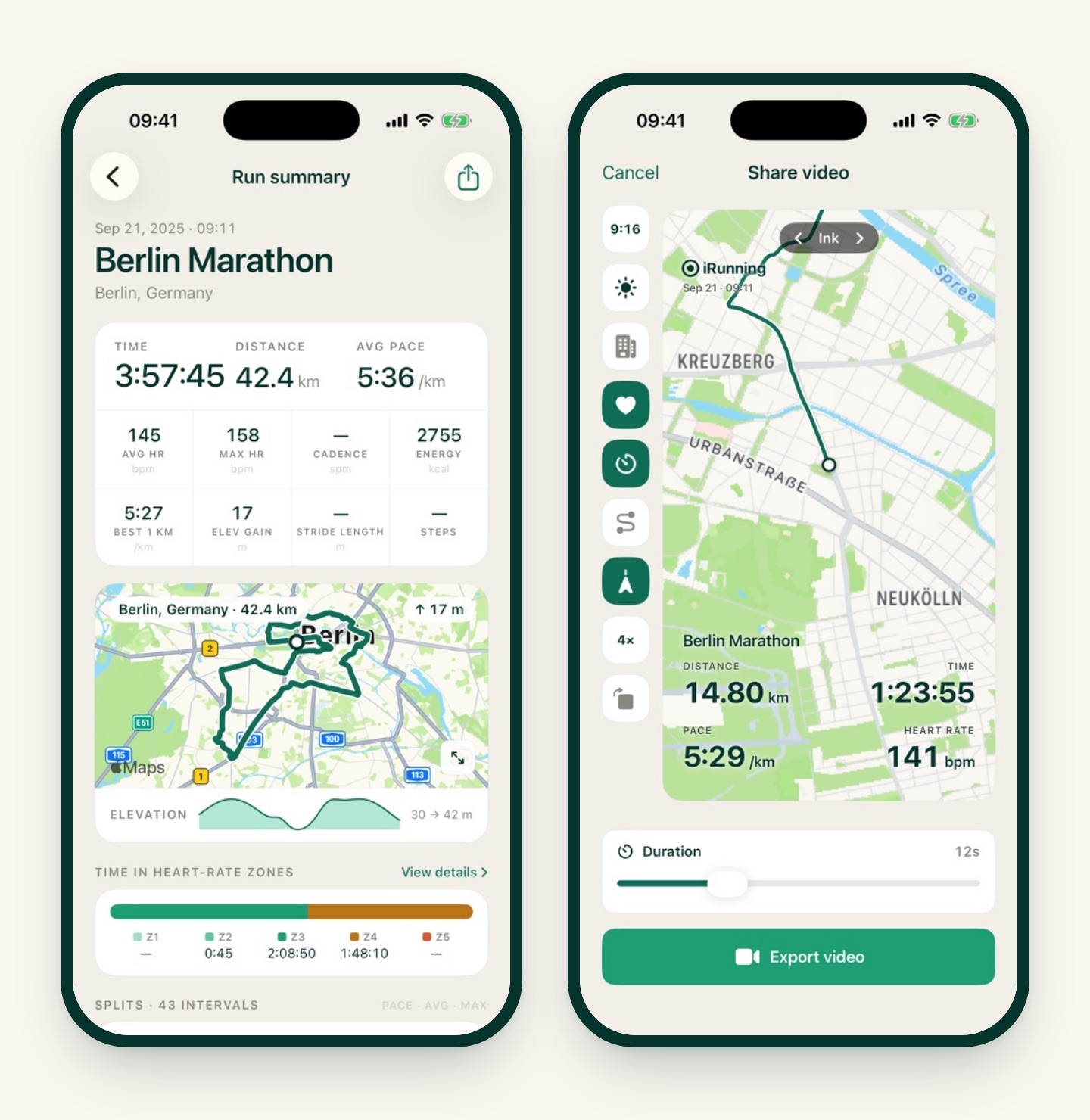
The app keeps the route, distance, moving time, pauses, altitude and heart rate. From a FIT file, it also keeps running-form data like cadence. If the file has no laps, iRunning makes a split for every kilometre. The same race won’t be imported twice.
A few things to know:
- Names. A GPX file keeps its track name. Runs from FIT files and Apple Health get a time-of-day name, like Morning Run.
- Do it soon. The free version shows the last 7 days of your history, so import and share your race within a week. iRunning Premium keeps your full history.
- Distance will read long. Nearly every watch measures a big-city marathon as a bit more than 42.2 km. Our Berlin file says 42.4 km. That’s normal.
For more detail, see our guide to importing runs from Nike Run Club, Strava or Garmin.
Step 2: a card for your feed
Open the race and tap Share, then Image.
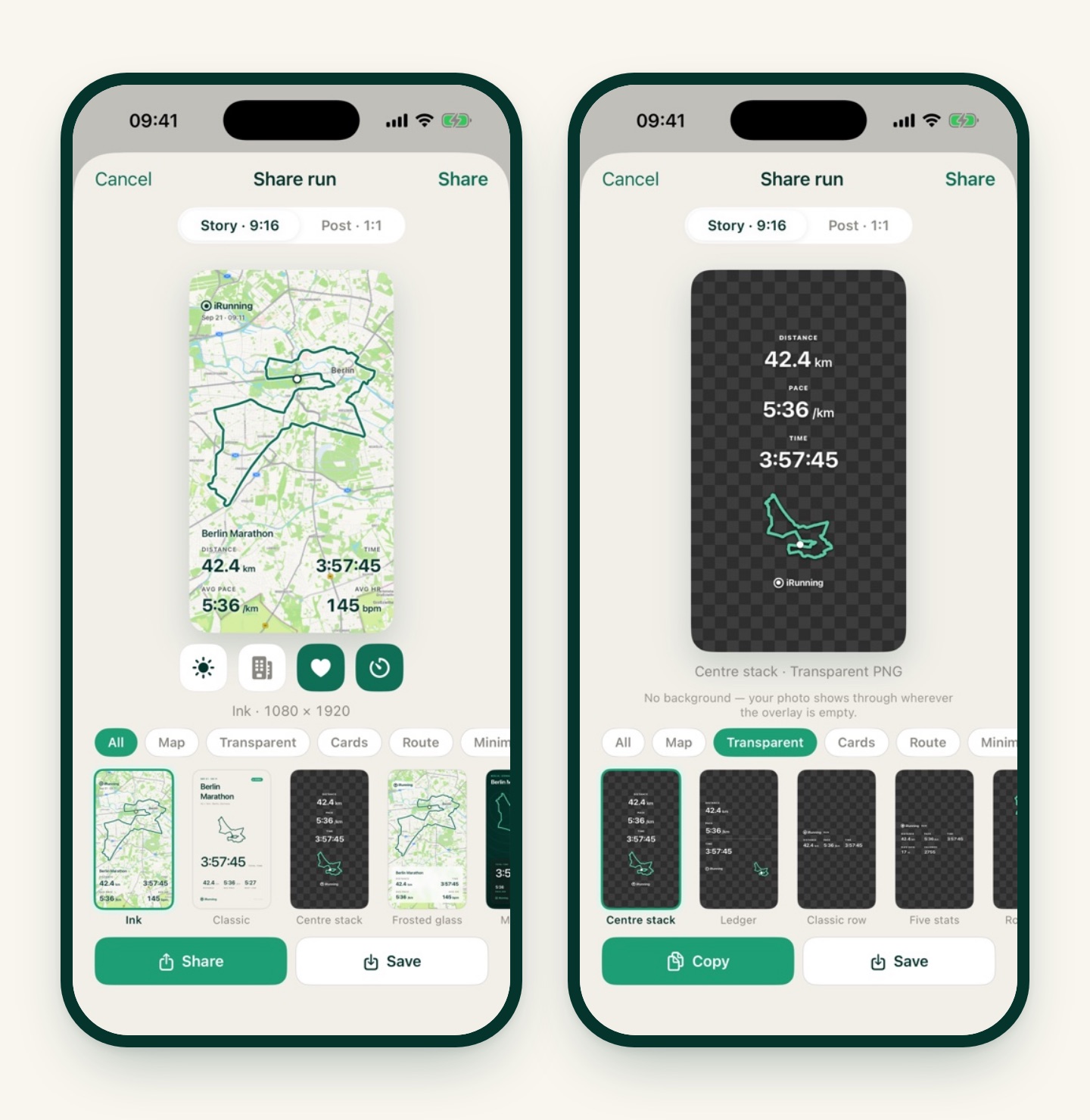
- Pick a format. Story · 9:16 for Instagram and TikTok stories, Post · 1:1 for your feed.
- Pick a template. There are 12 card designs, from a full-screen map to a big-number card and a splits ladder. The filter chips at the top (Map, Transparent, Cards, Route and more) help you find one quickly.
- Tap Share or Save. Share goes straight to Instagram, Messages or wherever you like. Save puts the image in your Photos.
A marathon looks best on a map card: the whole loop of the city fits on one screen, with your distance, time, pace and heart rate underneath.
Step 3: your stats on your finish photo
The finish-line photo with your medal is the one everyone wants to see. The Transparent templates put your stats on top of it.
- In the share screen, tap the Transparent chip and pick one of the 17 overlays. Centre stack works well for a marathon: distance, pace and time, with the outline of the route underneath.
- Tap Copy.
- In Instagram, start a story with your finish photo and paste. The overlay has no background, so your photo shows through wherever it’s empty.
Overlays that need data your run doesn’t have are hidden. For example, the heart-rate overlays only appear if your watch recorded heart rate. Our overlay guide shows every design.
Step 4: a video of the whole route
For 42 km, a video says more than a picture. Tap Share, then Video:
- Choose a style. There are five: Ink, Frosted glass, Brand block, Side rail and Bleach wash.
- Choose the map. Light, dark or satellite, with an optional 3D view that follows you through the streets.
- Choose the shape and length. 9:16, 2:3 or 1:1, from 5 to 30 seconds. The default is 12 seconds, which is about right for a story.
- Tap Export video. Your distance, time, pace and heart rate count up as the line moves across the city.
Our run video guide has examples of every style.
What’s free
Sharing images, overlays and videos is free, and so is importing runs from Apple Health, GPX and FIT files. Exporting GPX and FIT files, uploading to Strava and keeping your full run history are part of iRunning Premium.
Before race day
If you haven’t raced with a watch before, do a quick test this week: record a short run, import it, and try the share screen. That way you’ll know it all works before Sunday.
Then read our Berlin course guide, and go get that finish photo.