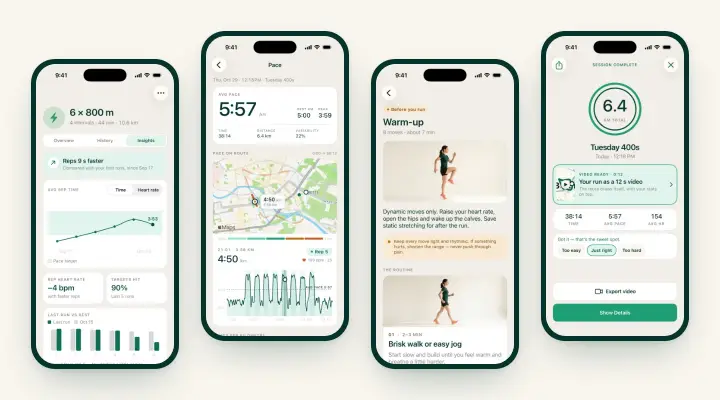
iRunning 1.2.4 is on the App Store. Most of it is about the run itself: knowing when an interval is about to change, fixing a step that went wrong, and seeing where you are on the map without stopping. Below is what’s new, and where to switch each thing on.
3·2·1 before each interval ends
The countdown used to come after an interval ended, and the run paused for it. Now it beeps 3·2·1 over the last three seconds of every interval, so you know the change is coming and the run never stops for it.
- Stronger haptics on iPhone, including with the screen locked, so you feel the change with the phone in a pocket or armband.
- Your Apple Watch taps the same beats, both when it mirrors a phone run and when it runs a workout on its own.
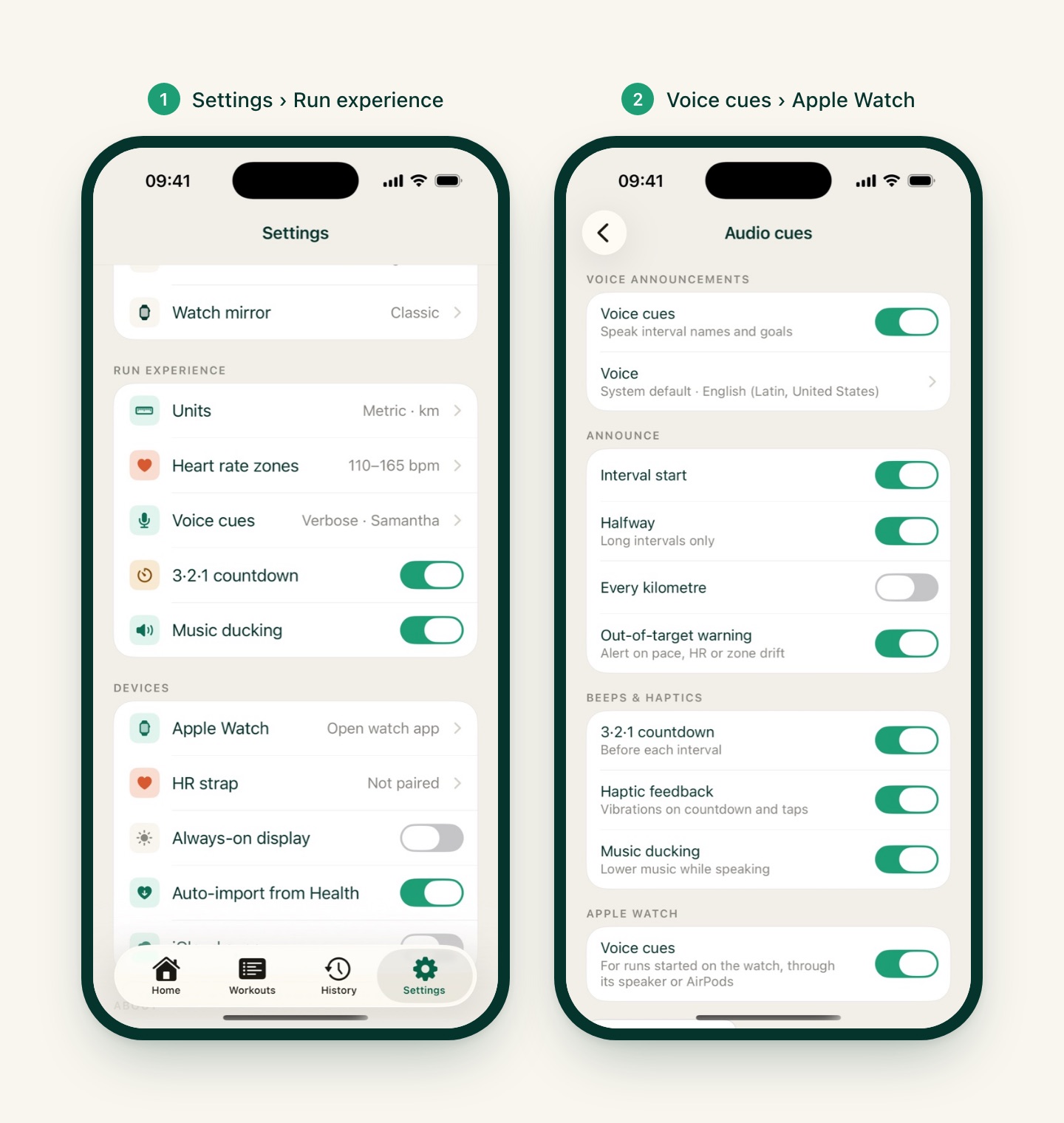
Where to find it: it’s on by default. The switch is Settings › Run experience › 3·2·1 countdown. The vibrations follow Haptic feedback in Settings › Voice cues › Beeps & haptics.
Go back a step
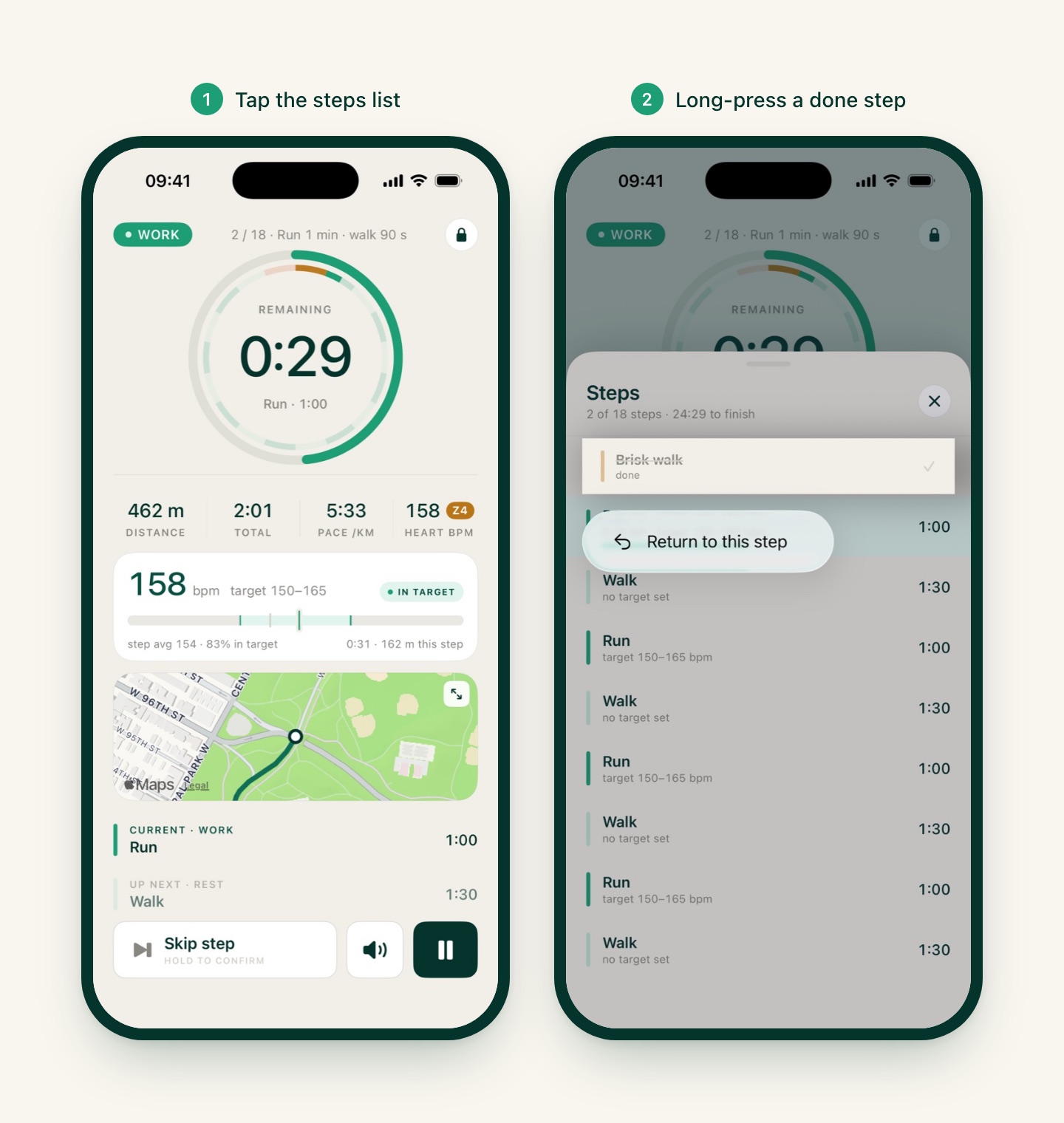
Cut a rep short, or got stopped at a crossing halfway through it? You can now run it again without restarting the workout.
- During a run (or while paused), tap the steps list at the bottom of the run screen. The full list of steps opens.
- Long-press a finished step and tap Return to this step.
The run jumps back to that step with a fresh timer, distance, heart rate and cues. Nothing is lost: splits keep both attempts, the step you were on is recorded as skipped, and the laps in Apple Health and FIT exports stay in step with the clock.
A live map that follows you
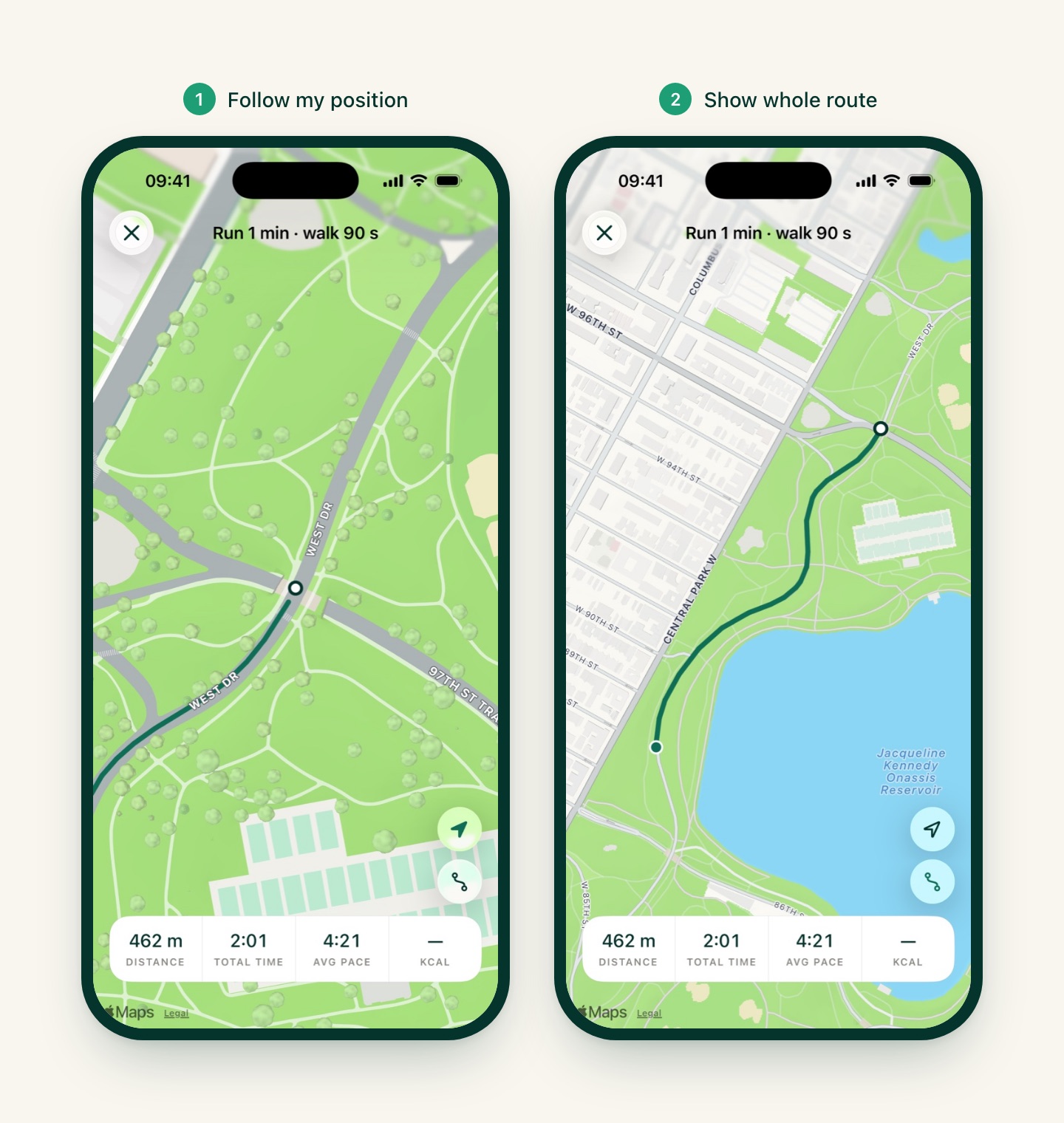
Tap the map card during a run (the expand icon in its corner) and the full-screen map now stays centred on you as you move. Two buttons on the right switch between:
- Follow my position: the arrow. A close street-level view that moves with you.
- Show whole route: the route icon. The camera fits everything you’ve run so far and zooms out as it grows.
Pan or pinch whenever you like: the map stays where you leave it until you tap one of the buttons again.
Voice cues on Apple Watch
Runs started on the watch used to be haptics only. Now they can speak their cues through the watch speaker or your AirPods, so you can leave the phone at home and still hear every interval.
Where to turn it on: it’s off by default. On your iPhone, open Settings › Voice cues and switch on Voice cues in the Apple Watch section at the bottom (the section appears once the iRunning watch app is installed). What the watch announces follows the same Announce switches as the phone: interval start, halfway, every kilometre or mile, and out-of-target warnings.
9 new video styles
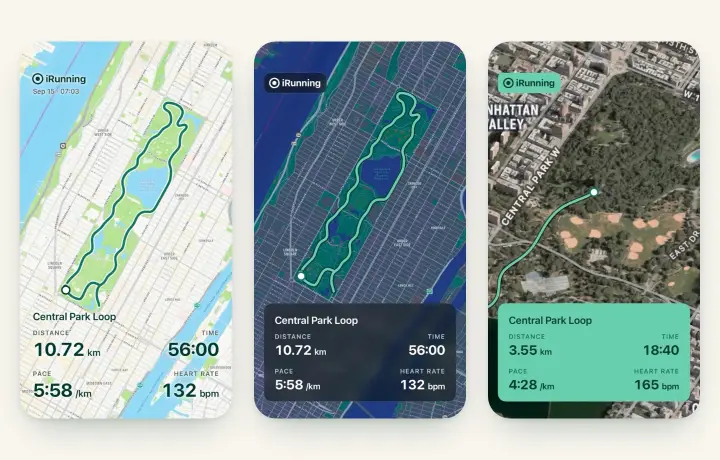
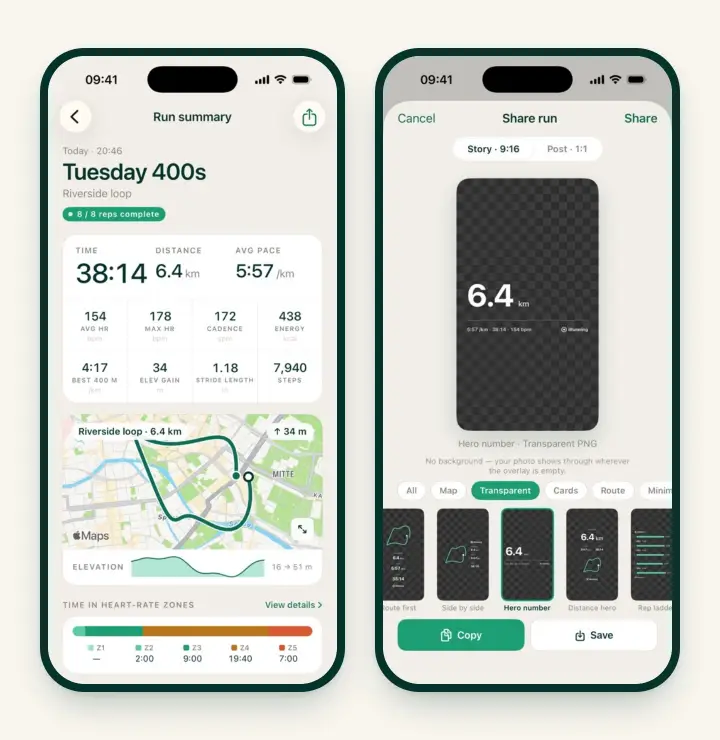
Share › Video gets nine new overlays, built around the way TikTok, Reels and Shorts lay out their buttons: stats run down a side rail, across a band at the top, or in a light corner card, so nothing important sits under the app’s own interface.
The new ones: Glass rail, Split rail, Hairline rail, Ink rail, Chip rail, Two-tier band, Ticker band, Glass band and Light corner. Swipe across the preview to switch between them.

Also in video:
- Smoother map rotation on turns. When the camera follows you heading-up, corners turn over about a second instead of snapping.
- Story videos stay clear of YouTube Shorts cropping, so the stats never get cut off at the edges.
Video export is still free for everyone. The full walkthrough is in Turn Your Run Into a Video for Instagram Stories and TikTok.
In case you missed 1.2.3
The previous update was smaller, so here it is in short:
- Faster GPS. The run screen no longer waits for a perfect signal: the first fix arrives in seconds, even between tall buildings. A “Searching for GPS…” chip shows on the map until the signal is ready, and outdoor distance only counts real GPS movement from that first fix.
- Better AI workouts. The Apple Intelligence builder reads repeats, distances, rest and pace more reliably (“6 × 400 m, 90 s rest”), and dictation keeps listening until you tap stop.
- Sharper transparent share templates over bright photos.
How to get it
Update to iRunning 1.2.4 on the App Store. Then start any interval workout and listen for the 3·2·1 before the first change. If you run with an Apple Watch, flip on its voice cues first.
Thanks for running with us. Keep the feedback coming!