An Apple Watch is close to the perfect interval coach. It’s on your wrist, it taps you when it’s time to change, and it measures heart rate without a strap. The hard part is getting the workout onto it: “6 × 800 m with 90 seconds of jogging” has to live somewhere before you can run it.
There are three ways to do that, and they suit different runners. This guide covers all three: Apple’s own Workout app, sending a structured workout to it from another app, and running the session in a dedicated watch app.

The short version
| Where you build it | Runs in | Best for | |
|---|---|---|---|
| 1. Apple Workout app, Custom | On the watch, or in the Fitness app on iPhone with iOS 26 | Apple’s Workout app | One or two simple sessions you repeat every week |
| 2. Sent with WorkoutKit | In a running app on iPhone, e.g. iRunning’s workout builder or a training plan | Apple’s Workout app | Structured sessions with pace or heart-rate targets, without typing them on the watch |
| 3. A dedicated watch app | In the app on iPhone; it syncs to the watch | The app’s own watch app | Training plans, a session history in one place, run screens built for intervals |
All three can run without your iPhone, all three save the run to Apple Health, and all three can be free. The difference is how much typing you do and where the workout lives afterwards.
Way 1: Apple’s Workout app, Custom workout
Since watchOS 9, Apple’s Workout app has a built-in interval builder. On the watch:
- Open Workout, find Outdoor Run, and tap the ⋯ button on its tile.
- Scroll to Create Workout and choose Custom.
- Add a Warmup (time, distance or open).
- Tap Add and choose Work and Recovery steps, each with a time, distance or open goal.
- Group them as Repeats and set the count, e.g. 6.
- Add a Cooldown, name the workout, and it’s saved under Outdoor Run.
On iOS 26 with a watch on watchOS 26, you can do the same from your iPhone: in the Fitness app, open the Workout tab, choose Outdoor Run, tap the timer-shaped button, then Custom and +. Building on the big screen is much easier, and the workout syncs to the watch. Each step can carry an alert: a pace range, heart rate (a range or one of Apple’s zones), cadence or power. The watch taps you and shows a warning when you drift outside it.
Good: built in, free, no extra app. The run lands in the Fitness app and Apple Health like any other workout.
Less good: you build every session by hand, one step at a time. A week of a training plan is four sessions. A 16-week plan is 64. And the builder doesn’t know anything about your plan: what you ran last week, what comes next, or what to do when you miss a day.
Way 2: send a structured workout to the Workout app
Apple also lets other apps put a finished workout straight into the Workout app, through a framework called WorkoutKit. You build the session where it’s comfortable, in an app with a proper builder or a training plan, tap one button, and it appears in Apple’s Workout app on your watch, steps and alerts included. Then you run it exactly like a custom workout you’d made yourself.
In iRunning it works like this:
- Open any workout: one you built, a preset like Tabata, or a session from a training plan.
- Tap Add workout to watch. You’ll see a preview of every step, as the Workout app will show it.
- Tap Add to Apple Watch. The first time, iOS asks you to let iRunning schedule workouts.
- On your watch, open Workout and tap the workout’s name under Outdoor Run.
What carries over:
- Warm-up and cool-down become the Workout app’s own warm-up and cool-down steps.
- Repeat blocks become repeats with the same count, so “6 × (800 m work, 90 s jog)” stays one block of six.
- Goals map one to one: time, distance or open.
- Targets become alerts. A pace target becomes a pace-range alert, a heart-rate target becomes a heart-rate alert, using the zone boundaries you set in iRunning rather than Apple’s. That matters if you’ve edited your zones: the watch holds you to your zone 2, not a generic one.
The workout arrives as an outdoor run. For a treadmill session, change the activity on the watch before you start, or use way 3.
Good: free in iRunning, no typing on a tiny screen, and you can send the week’s sessions in a couple of minutes. Our negative-split guide uses this to put a marathon pace band on the watch.
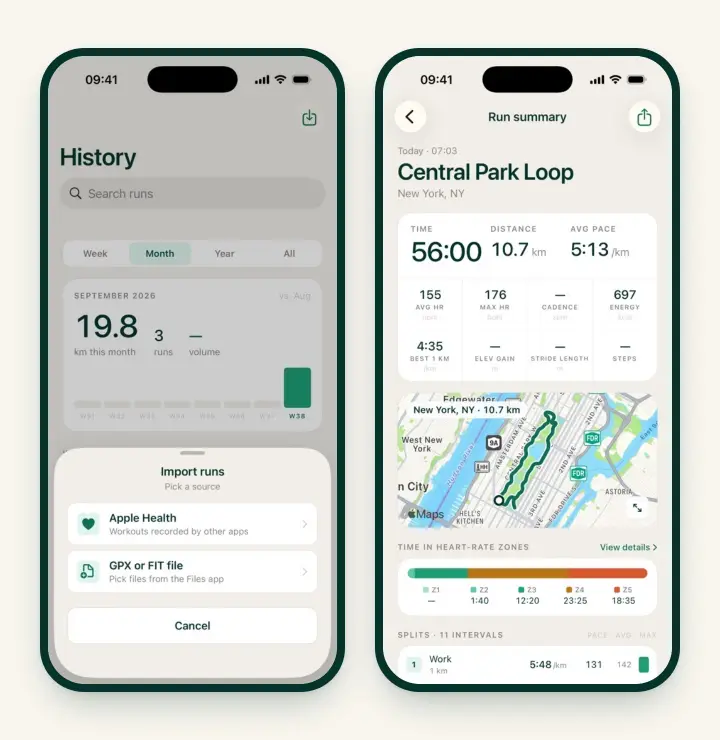
Less good: once it’s in the Workout app, it runs like any Apple workout. You get Apple’s run screen and Apple’s taps, not voice cues from your running app. The run is saved to Apple Health, so iRunning picks it up with Import from Apple Health (or automatically, if auto-import is on), but your training plan doesn’t know which session it was.
Way 3: a dedicated watch app
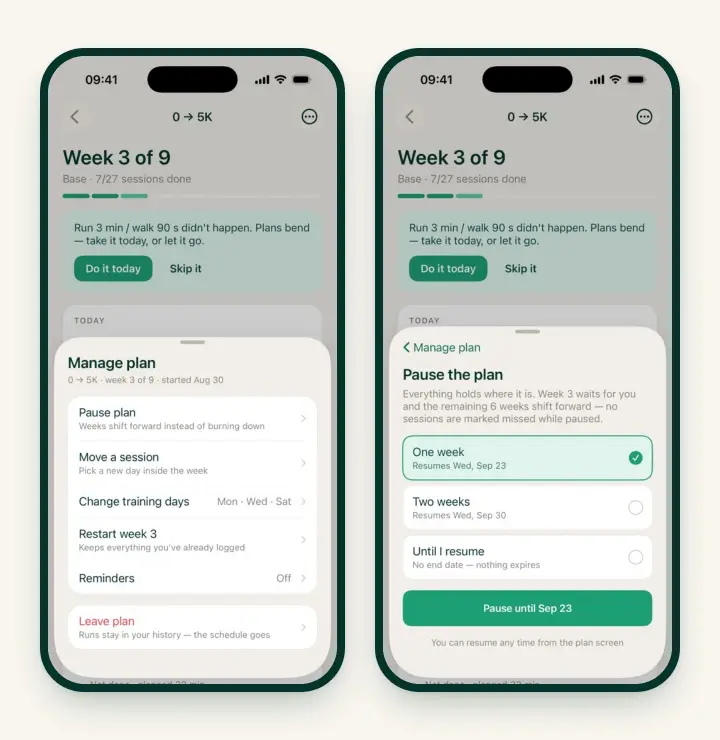
The third option is to run the interval session in an app built for it. The iRunning Watch app installs with the iPhone app, and every workout and plan session you have on the phone appears on the watch.
- The session runs on the watch itself. Leave the phone at home; the watch keeps the structure, measures heart rate and records the GPS route, and the run syncs to your phone when you’re back.
- Haptics are designed for intervals. A work interval starts with a sharp tap, a rest starts with a softer one, and a target alert is a double tap you can’t miss. After a few runs you stop looking at the screen.
- The plan knows what you did. A session started from a training plan is marked done in that plan, and the next one moves up.
- You get the full summary afterwards: per-interval splits, time in each heart-rate zone, the route, and the share cards.
Good: the most structure for the least effort, especially with a plan. Everything lands in one history.
Less good: it’s another app, and some things (plans beyond the free one, the extra run screens) are part of a subscription. The Watch app, haptics, heart-rate zones and alerts are free.
There’s also a fourth, hybrid way: start the run on your iPhone and let the watch mirror it. You get iRunning’s voice cues in your headphones and the live numbers on your wrist. It’s a good choice if you carry the phone anyway, for music or safety. Our voice cues guide covers what the voice says and when.
Which one should you use?
- You do the same one or two sessions every week (say, a Tuesday 6 × 400 m and a Saturday long run): build them once in the Workout app and forget about it.
- You follow a plan, or your sessions change every week, but you like Apple’s Workout app and Fitness rings: build or pick the session in an app and send it to the watch.
- You want the plan, the cues and the history in one place: run it in the dedicated watch app.
Most people end up mixing. A plan session in the iRunning Watch app midweek, an easy run started from the Workout app on the weekend, both in Apple Health afterwards.
Five tips for intervals on the watch
- Set reps by distance, recoveries by time. “800 m, then 90 seconds” is easier to run and to compare week to week than “3:30, then 400 m”.
- Use a range, not a single number. A pace alert of 4:50–5:05 per km beats “4:57”, which will buzz all the time because GPS pace jumps around for the first 20 seconds of every rep.
- Turn on heart-rate alerts for easy days, not for reps. Heart rate lags by 30–60 seconds, so in a 400 m rep it will alert you only when the rep is almost over. On easy runs it’s the best guard you have. The heart-rate zones guide explains which zone to cap at.
- Go to an open space for the first rep. GPS needs a clear view of the sky to lock on. Start the warm-up in the open, not under trees or next to tall buildings.
- Keep the watch snug for heart rate. One finger’s width above the wrist bone, tight enough not to slide during reps.
Get started
The iRunning Watch app, Add to Apple Watch, heart-rate zones, pace alerts and voice cues are all free, with the Tabata and Easy run presets and two custom workouts of your own. If you’ve never built an interval session before, our interval builder guide walks through the first one, and running phone-free covers the Watch app in more detail.